Reviewing a Pull Request
Read the whole diff, act on AI findings, and submit — without leaving PR Flow.
Finding the pull request that needs you is half the job. The other half is reading it, and that is where most tools send you back to a browser tab.
PR Flow opens the whole change in a full-window review: the complete diff, the conversations already on it, the findings your AI raised, and the comments you are drafting — in one place, with the queue of everything else waiting behind it. Nothing you stage reaches the pull request until you submit.
Opening a review
Every surface that shows a pull request can open it: the Review changes action on a feed row, the Review button in PR Details, and any activity row — selecting a conversation opens the review at that exact thread. When a deep review finishes, View findings on the notification opens the review with its results already showing.
PR Details collects conversations you owe in a Your turn panel inside the Needs you tab, alongside everything else that pull request needs from you. If you already approved, the panel says that your approval is recorded while making clear that the conversations still need replies. Each item shows the author, latest message, location, and outdated state, then opens the matching Review conversation.
Opening a review snapshots your current Needs you list as a queue, respecting whatever filters you have applied. The pull request's title in the header is the queue selector: it shows where you are, and opening it lists everything in the queue with its repository and number, so two similarly named changes are never confused. The arrows beside it step through the same order and name their destination before you go.
If the change is part of a stack, a Layer n/m pager sits alongside — a different axis, moving up and down the chain rather than through your queue. See Stacked Pull Requests. Layers PR Flow already tracks open directly; the rest stay reachable from the stack map in PR Details.
← Queue or Esc takes you back.
When a pull request leaves your board mid-review
Someone else's pull request stays on your board only while your review is requested. On Gerrit, that means only while you're in the change's attention set, and your own reply or vote takes you out of it. So a pull request can leave your board while you're still reviewing it, for example when the author withdraws the request, when you reply on Gerrit, or when it's merged or closed.
The review doesn't close when that happens. It stays open, and a note at the top says why the pull request left your board and that it stays open until you leave. If the pull request comes back, for example because a Gerrit change's owner replied and it's your turn again, the note goes away.
Reading the diff
Every file renders in one continuous, syntax-highlighted diff, with the current file's header pinned as you scroll. Gaps between hunks expand in place — Expand N unchanged lines — on GitHub, GitLab, Gerrit and Azure DevOps alike. Large and generated files start collapsed behind a Load diff button so a lockfile never buries the change you came to read.
Mark viewed greys a file out and fills the progress bar in the rail. It is deliberately tied to the revision you reviewed: if the author pushes new commits, viewed marks clear, because you have not seen the new version.
The Commits selector narrows the diff to a range — Since last review is one click, and picks up exactly where you left off. The left rail switches between a flat file list and a directory tree, both showing per-file counts of findings and open conversations.
While you read, PR Flow keeps checking the head. If the author pushes, a bar appears — "pushed 3 new commits since you opened this" — with Update diff. The diff under you is never swapped silently.
Change Story — reading a change as a path
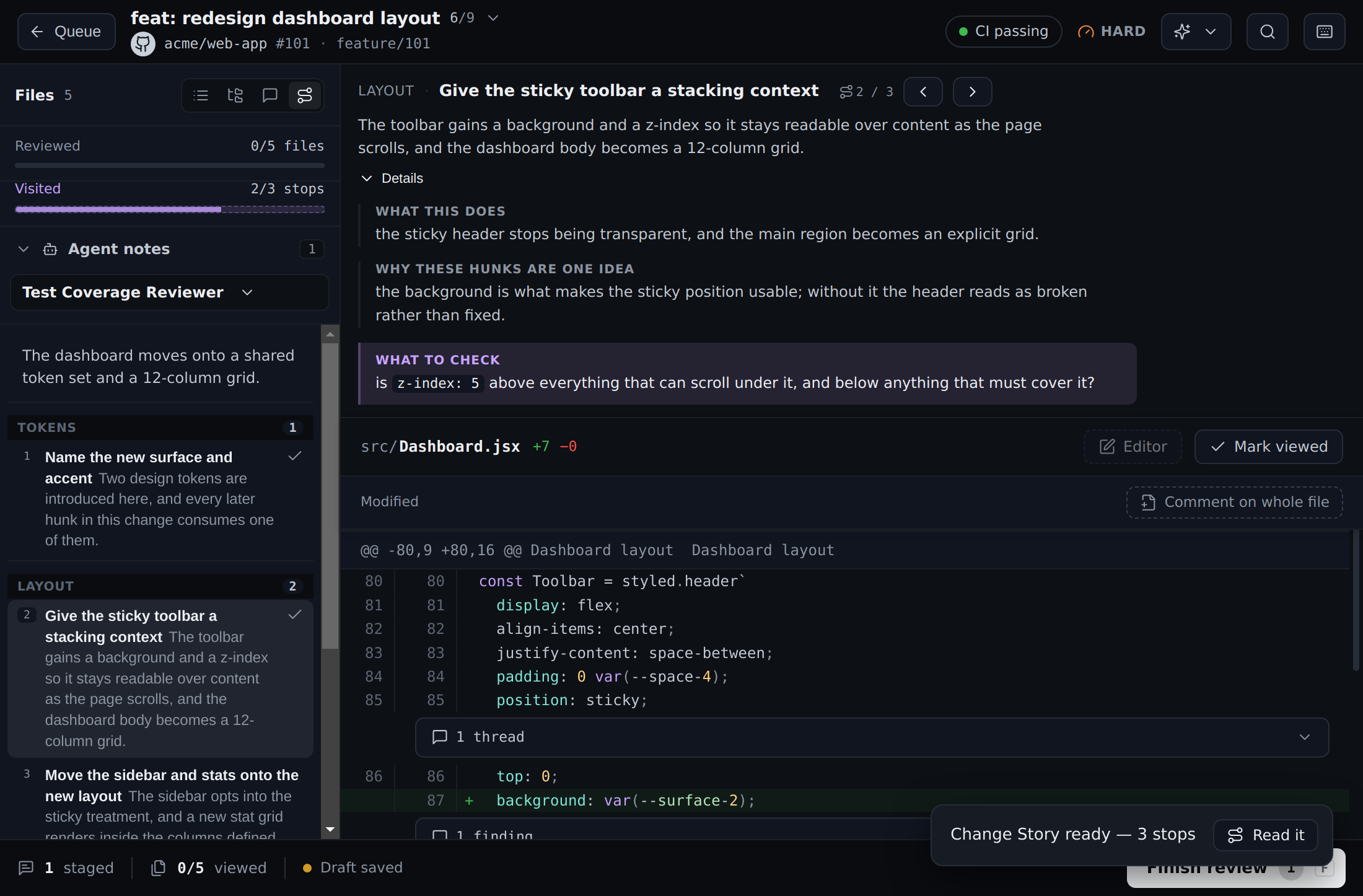
File order is complete but often backwards. A caller shows up before the contract it relies on, tests land far from the behaviour they prove, and one idea is split across a model, a service, a migration and a test. Change Story asks AI to order the same change into a path you can walk: a few conceptual chapters, and inside them ordered stops that group the hunks belonging to one idea — even when those hunks sit in different files.
Nothing generates on its own. Generate story lives in the review's AI menu, and while it runs the diff stays open underneath. When a story is ready, a Story / Files switch appears in the header, and the left rail gains a Story tab listing the chapters, the stops, and the supporting changes.
A stop is one idea, not one file. Walking to a stop shows exactly the hunks that idea touches, in the order that makes them easiest to read — a type, then its caller, then the test that proves it. Each stop opens with a sentence of orientation, and a walk-through you can expand: what the change does, why those hunks are one idea, and the questions the stop raises for you. It never tells you the code is correct — that judgement stays yours.
Everything is accounted for. Anything the guide deprioritised — a lockfile, a mechanical rename, a repeated pattern — is listed under Supporting changes with the reason it is there, and the rail states the arithmetic: how many hunks sit in stops, how many are supporting, and the total, which matches what Files shows. Anything the guide did not place is added there by PR Flow itself and labelled as such, so a short path never means a hidden change.
You are never trapped in it. Any file in the rail opens whole, as a detour that holds your place in the story — the switch does not move and nothing you have drafted is touched. Comments, AI findings, conversations and staged replies behave exactly as they do in Files, because you are reading the same diff. Search spans the entire change, including hunks in supporting changes and stops you have not reached.
Visited is not reviewed. A second, deliberately different progress bar counts the stops you have opened. It is your own place in the change — never a claim about the code, and never mistaken for the reviewed-files bar above it.
If the author pushes while you are reading, the story is frozen against the revision it was built for and offers a rebuild, rather than quietly re-pointing itself at hunks it was never built from. Your staged comments and drafts are untouched; visited stops are not carried across.
Reading the repository around the change
A story can explain more than the patch when you have mapped that repository to a local checkout for Open in Editor and granted the guide permission to read it. The same repository evidence is available to Discuss, Deep Review, and custom findings or note agents that request it. Mapping a folder is not that permission: sending code to an AI provider is a separate grant you give per agent, repository, and selected destination, and can revoke at any time.
With it, an agent names the files and literal searches it needs, and PR Flow does the reading itself — pinned to a revision, so your uncommitted work is invisible and your branch, working tree and index are never touched. It can follow what it discovers for up to three bounded rounds. Files that hold credentials are refused whatever the agent asks for, every read is recorded under Provider reads in the log, and cited evidence is labelled with the revision it came from. Because the app does the reading rather than handing repository tools to the model, this works with every AI provider PR Flow supports.
Without a mapping or a grant, the story is built from the diff alone and says so.
Choosing how much you read
Settings → General → Reading a change holds three preferences: whether a pull request opens in Story or Files, how much the guide writes (Brief, Standard or Thorough — Thorough is a longer, slower generation on a large change), and whether the walk-through starts expanded. An organisation can switch Change Story off entirely; doing so removes only the guided path, and leaves every ordinary review action exactly as it was.
Coming back to a review
Open a pull request you have already reviewed and the diff starts on what changed since your last pass, not on the whole change again. The commit list in the rail shows which commits are new, the header says since last review, and Show all beside it puts the full change back without expanding anything.
It follows the commit you actually signed off rather than the clock, so work written before your pass but pushed after it no longer reads as already seen. Where the branch has been rewritten under you and that commit is gone, the whole change is shown rather than a guess — and if you finish a review on your provider's own site, PR Flow notices, instead of answering about a pass you have already superseded.
It follows the commit you actually signed off rather than the clock, so a rebase or a force-push — which rewrites every commit with a fresh date — no longer presents the entire branch as new. If the reviewed commit has been squashed away, or the range cannot be fetched, the full change is shown rather than a partial one.
Comments, findings and bots
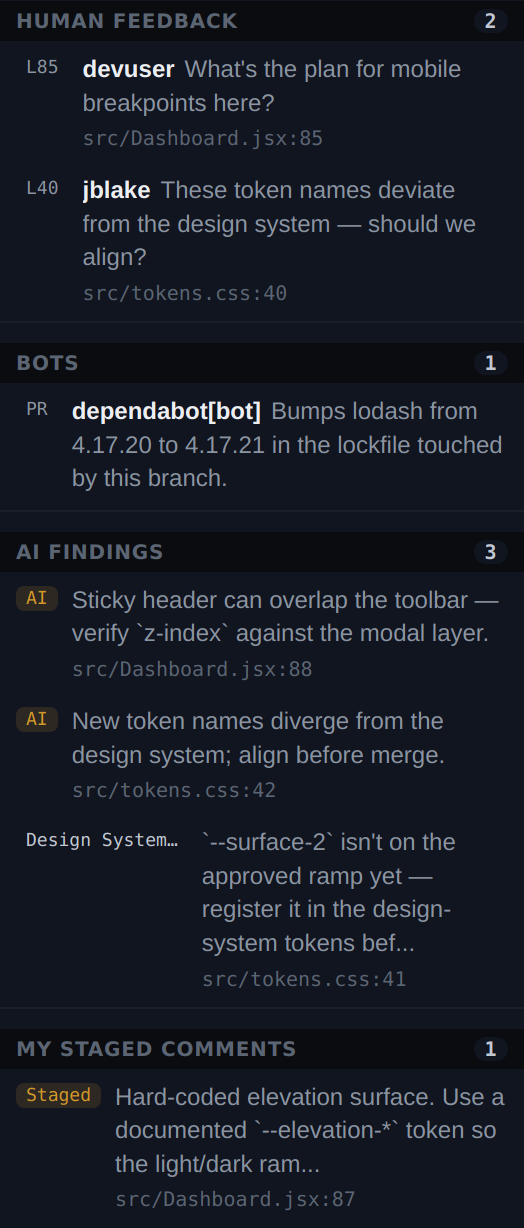
The rail's Comments view collects everything on the pull request, grouped by where it came from: Human feedback, Bots, AI findings, and My staged comments. The bot group uses the bot accounts you configure in Settings, so a coverage report or a dependency bump never dilutes the count of things a person actually said.
Each group counts only what is still outstanding, and disappears entirely when it has none — a human-only or AI-only review reads as cleanly as a mixed one. Resolved conversations and dismissed findings stay one click away without inflating that count. A conversation on a line that has since moved stays outstanding and is marked as such: the code moved, the question did not go away. Every row carries the file and line it belongs to, and selecting it jumps straight there.
Inline reply obligations land on their exact thread. Top-level and unanchored conversations land on their exact row in the Comments rail. If a provider cannot supply enough context for either destination, PR Flow labels the missing context and opens the pull request's conversation page instead of pretending it found a line.
Agents that produce notes rather than line findings gather in their own Agent notes panel, since whole-PR advice has no line to pin to.
Leaving feedback
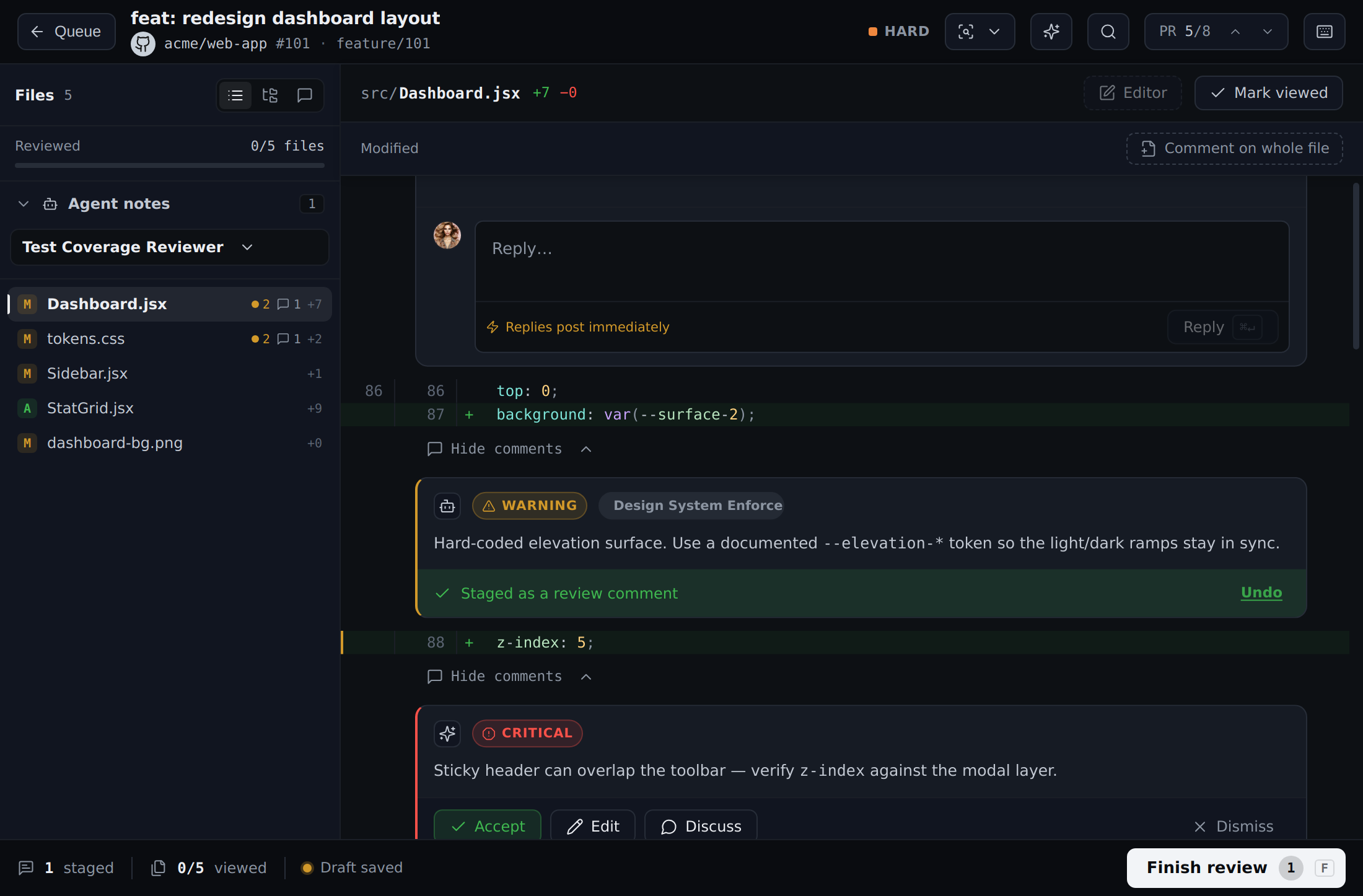
Hovering any line reveals a + to stage a comment there; the file header offers a comment on the whole file. Staged comments can be edited or removed right in the diff, and the composer says what it is: staged, nothing posts until you submit.
AI findings appear as pins on the lines they flag, tagged with the agent that raised them. On each one you can Accept it — staging it as your own review comment, editable first — Dismiss it, or Discuss it. Dismissing is yours alone: it writes nothing to the pull request. When PR Flow could not confirm the line a finding claimed, the pin says File scope rather than pinning a comment where it may not belong.
Two things do post immediately, and PR Flow labels them where they happen: replying to an existing conversation, and resolving or reopening one. Everything else — your staged comments, your summary, your verdict — waits for submit.
Discuss opens a panel beside the diff, scoped to the whole pull request, one file, or one finding. Answers stay in the panel and never post on their own; Add as comment turns one into a staged comment on that file or line, or appends it to your review summary. To jump from a diff line into your editor instead, see Open in Editor.
Finishing and submitting
The footer tracks your staged count and viewed progress. Finish review opens the sheet, where you pick a verdict — Approve, Request changes, or Comment — review the comments you staged, and write a summary. Draft with AI writes one for you, and asks before overwriting anything you already typed.
If any staged comment no longer matches the diff, the sheet says so before you submit and tells you exactly where it will land instead. On your own pull request, only Comment is available.
Submit posts everything at once. Submit & next does the same and moves you to the next pull request in the queue. If a submit only partly succeeds, PR Flow says precisely that — how many comments posted, what stayed in your draft, and whether the verdict landed anyway — and lets you retry without duplicating what already went through.
Every review PR Flow writes on your behalf is recorded in Settings → Logs → Write actions.
What differs by provider
The review works the same everywhere; the difference is how the write lands.
| GitHub | GitLab | Gerrit | Azure DevOps | |
|---|---|---|---|---|
| Approve | Approve | Approve | Code-Review +2 | Reviewer vote |
| Request changes | Request changes | No native equivalent — posts your comments and leaves the merge request unapproved | Code-Review −1 | Reviewer vote |
| A comment that no longer matches the diff | Folded into the summary | Posted as a general note, prefixed with its file and line | Posted as a file-level comment | Folded into the summary |
| Submitting | One atomic review | Comment by comment, so a partial submit is real | One atomic review | Comment by comment |
On Gerrit, if you do not have +2 rights an approval is posted as +1 and PR Flow tells you plainly that the author still needs a +2 from a maintainer — and holds you on that review so you see it.
Keyboard
The review is built to be driven from the keyboard. J and K step through files and findings, ↑ and ↓ through files alone. A accepts the focused finding and D dismisses it, C starts a comment, V marks a file viewed, X cycles the verdict, and F opens the finish sheet. Press ? at any time for the full list, which reflects your own bindings.
Inside a Change Story, and move between stops and S switches between Story and Files — deliberately alongside [ and ], which move between the layers of a stack. One pair moves through a single change, the other between changes.
Every one of these can be remapped in Settings → Shortcuts. See Keyboard Shortcuts.