Installation & Setup
How to install PR Flow and connect your tools.
PR Flow runs on your local machine and talks directly to your code hosts. Your pull requests, review activity, and teammate suggestions are processed locally and are not sent through a PR Flow intermediary.
1. Download PR Flow
You can download the latest version for macOS, Windows, and Linux from our official releases page.
- macOS: Download the
.dmgfile. There is a single Universal build — the same download runs natively on Apple Silicon and Intel Macs, so Rosetta is never required. - Windows: Download the
.exeinstaller. - Linux: Download the
.AppImage.
PR Flow offers a free 7-day trial. No account or email is required to install and start the trial.
2. Complete the four-step setup
The first launch opens one guided setup. You will not have to complete a separate license dialog and then start over in another welcome flow.
Step 1: Welcome and licensing
Choose Start free 7-day trial, or expand I have a license key and enter an existing key. The trial does not require an account or email. PR Flow also does not post reviews, comments, or other changes unless you explicitly submit them.
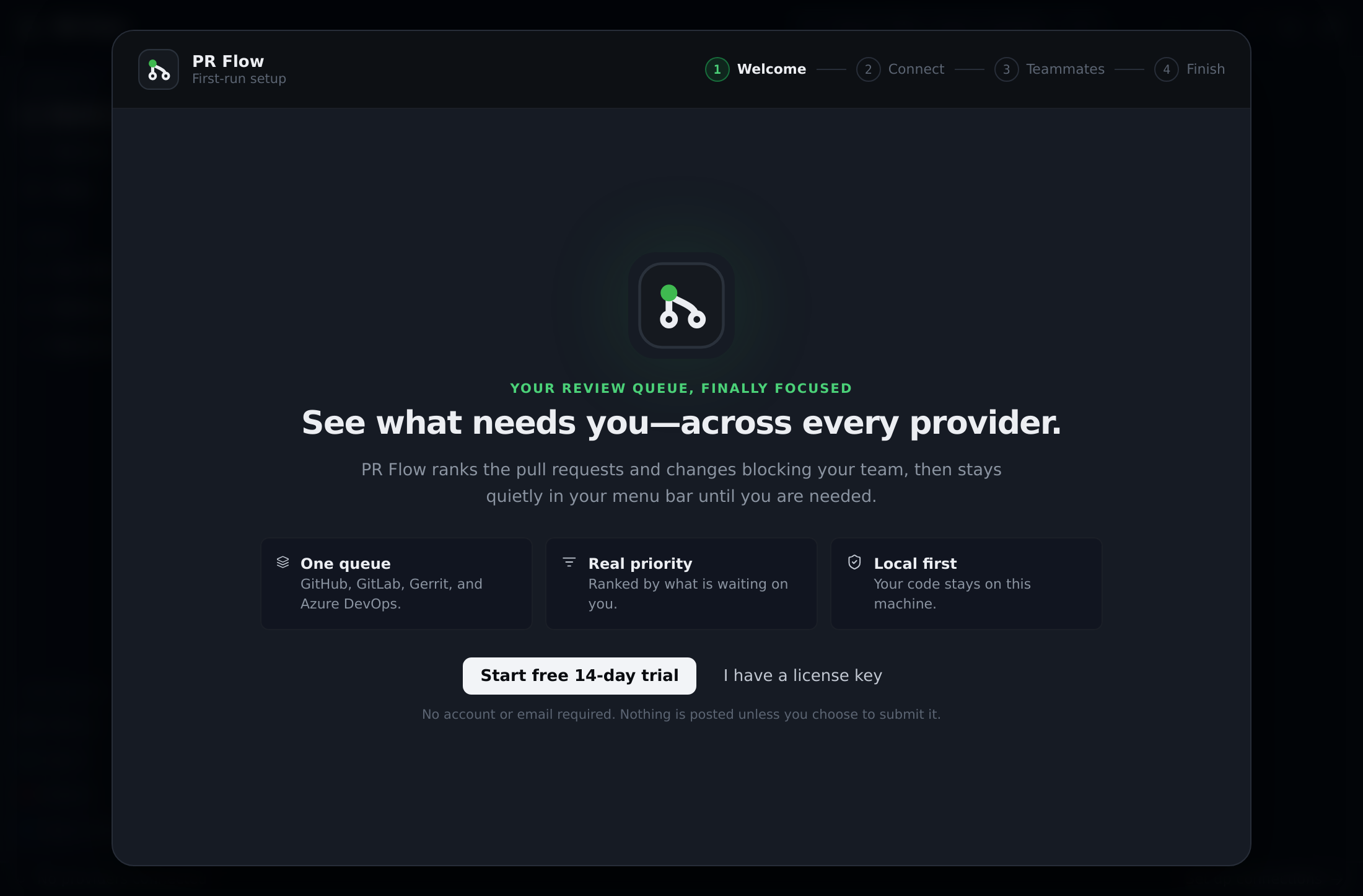
Licensing must succeed before provider setup. If this installation is already licensed or has an active trial, choose Get started instead.
Both the trial and a license key need a connection to the PR Flow license server at this step. On a company network that blocks it, see Network Access & Offline Use for what to allow.
Buying a license
PR Flow licenses are one-time purchases: Individual includes one seat, while Team starts at five seats and supports any whole-number team size up to 1,000. Team pricing is calculated per seat, so the checkout total always matches the quantity you select.
Every paid license includes 12 months of updates and keeps working perpetually with versions released during its update window. A one-time renewal extends update access for the same seat count; it does not start a subscription or renew automatically.
After payment is confirmed, PR Flow emails the license credentials. Team administrators use the included sign-in secret to manage seats and shared feature policy without exposing payment details to team members.
Step 2: Connect a provider
Connect at least one of GitHub, GitLab, Gerrit, or Azure DevOps:
- GitHub uses your authenticated
ghCLI session. - GitLab uses your authenticated
glabCLI session, including self-managed instances. - Gerrit uses the instance URL, username, and HTTP password you provide.
- Azure DevOps uses the organization URL, project, and personal access token you provide. The token needs Code (Read), Pull Request Threads (Read & Write), and Identity (Read) — the last one lets teammate search resolve people.
Provider credentials are saved immediately, so going Back in the wizard does not disconnect or sign you out.
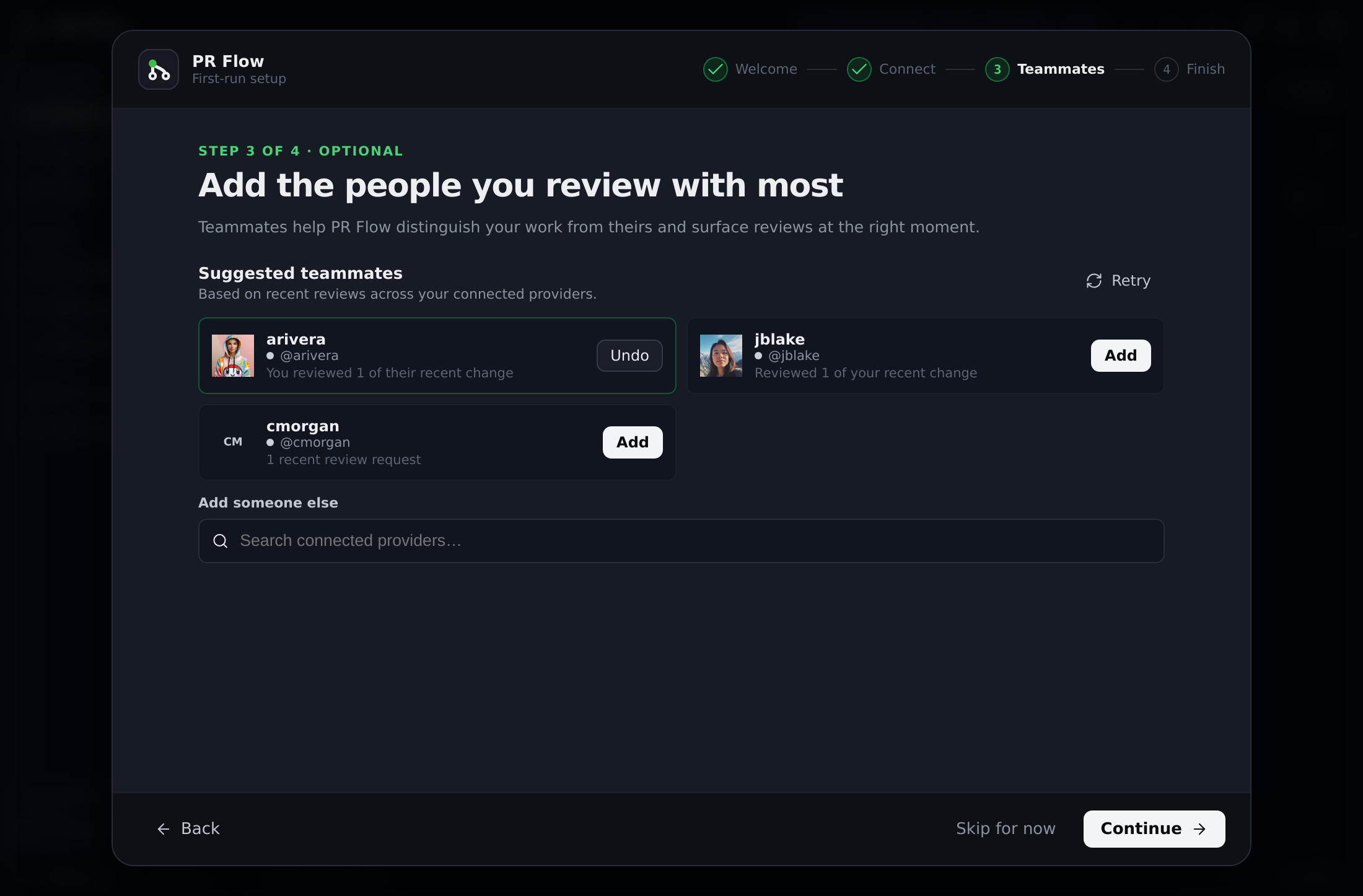
Step 3: Add teammates (optional)
PR Flow examines recent review exchanges and review requests from your connected providers, ranks the people you collaborate with, and suggests up to 12 teammates. The activity used for ranking remains in memory, is not persisted, and is not sent as telemetry.
Add a suggestion with one click, or use Undo if you change your mind. A provider that cannot return suggestions does not block the rest of setup.
Below the suggestions is the same teammate manager you get in Settings, so you can finish your roster here rather than starting over later:
- People lists everyone you have added, and searching adds anyone your connected providers know.
- Opening a person links the other accounts they review under, so one teammate can cover several providers.
- Groups organises people into squads you can filter by, and can import a GitHub team, GitLab group, or Gerrit group.
Teammates are only ever created from a real match on a connected provider, so the list cannot fill up with handles that do not exist. Matching display names on different providers are kept separate rather than being treated as the same person. Nothing is saved until you choose Open PR Flow.
Step 4: Finish
Review the provider and teammate totals, then choose Open PR Flow. PR Flow saves the teammates you selected, refreshes your providers, and builds the unified queue.
After licensing succeeds, Skip for now leaves connected providers in place but discards teammate choices that have not reached the Finish step. The next launch resumes in the normal PR Flow shell; you can connect providers and manage teammates later from Settings.
3. Keep PR Flow up to date
PR Flow checks for new releases when it starts and every four hours while it keeps running.
The status bar along the bottom of the window always shows the version you are running, so you can quote it in a bug report without opening Settings. When a newer release is waiting, a status appears beside it — Update available, Downloading update, or Update ready. Selecting it opens Settings → About, where PR Flow explains the right next step for the way you installed it; it never starts a download, restart, or install on its own. The status disappears once you are up to date.
What About offers depends on your installation:
- Signed macOS and Windows builds: The update downloads in the background. PR Flow tells you when it is ready to restart and install, and keeps that alert in the notification history.
- Homebrew on macOS: Settings → About shows copyable Terminal commands when a new version is available.
- Linux: PR Flow alerts you when a new version is available. Download the new AppImage and replace the current one manually.
If a check fails, retry it from Settings → About or the tray menu.
4. Recover an existing license
License recovery is separate from first-run setup. Configured installations show a dedicated blocking recovery screen when a trial ends, a license expires, is deactivated or suspended, is not eligible for the installed update, cannot be checked while offline, or is otherwise invalid. How long PR Flow keeps working without a connection is covered in Network Access & Offline Use.
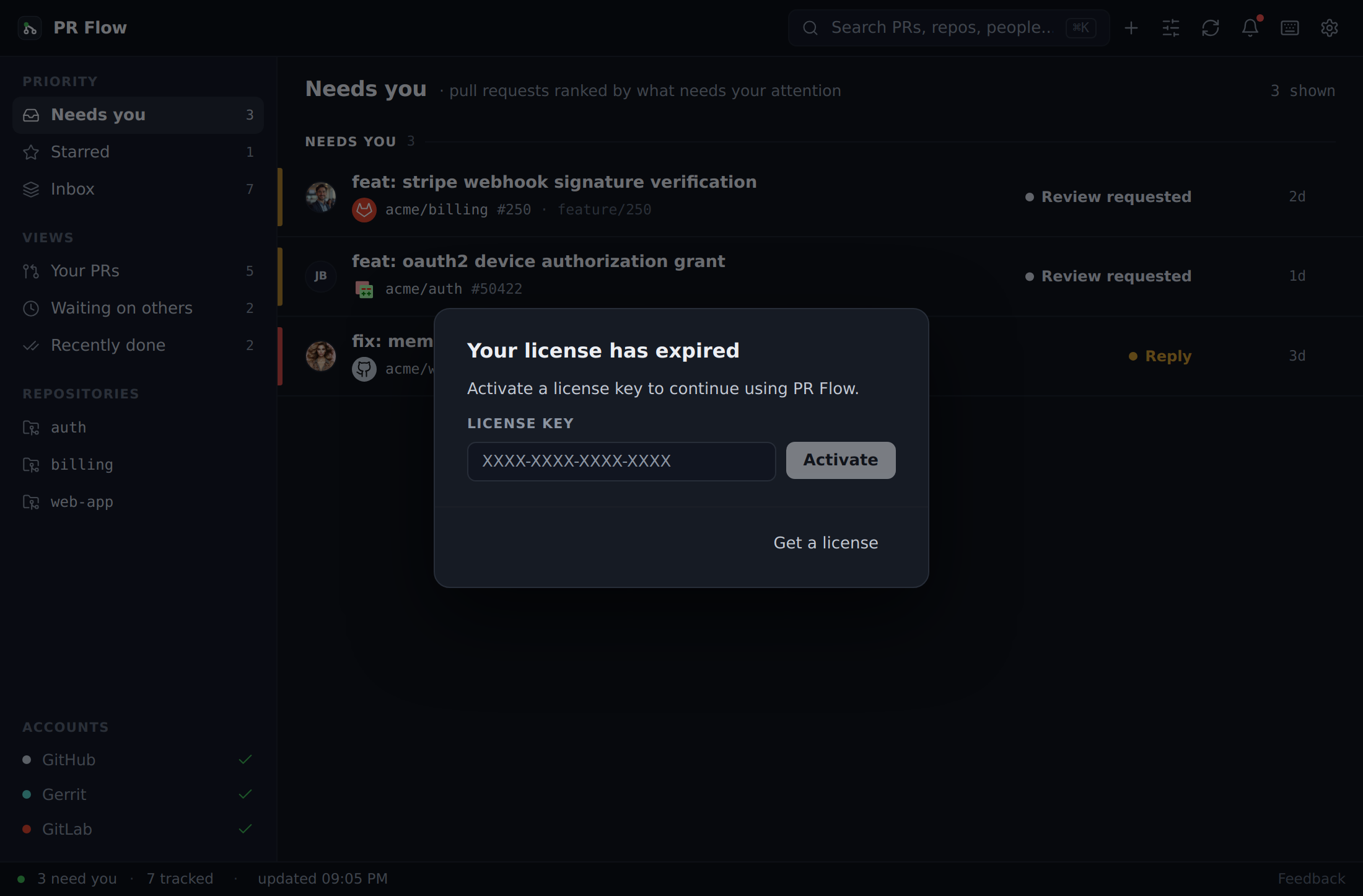
- Trial ended: When the 7-day trial runs out, the screen names the day it ended and summarizes what you did during it — reviews submitted, comments and replies posted, AI and agent runs, and pull requests triaged. Those figures are read from this device and never leave it. Get a license is the main action, and I have a license key reveals the key field if you already have one. Nothing is deleted: your board, filters, and drafts return as soon as you activate.
- Renewal: If a paid license has an upcoming expiration date, PR Flow shows a renewal notice with a direct Renew action instead of trial activation guidance.
- Reactivating a device: If this device's seat was deactivated remotely, re-enter the same license key when prompted to reactivate it.
- Switching keys: Entering a different license key releases this device's seat from the previous license after the new key activates. If the old seat cannot be released, PR Flow warns you so you can remove it through the license portal or contact support.
5. Install required CLIs
Because PR Flow does not use an intermediate server to read your code, you must have the appropriate command-line interface (CLI) installed and authenticated on your machine.
GitHub users
If you use GitHub, install the gh CLI:
brew install gh
gh auth login
GitLab users
If you use GitLab, install the glab CLI:
brew install glab
glab auth login