Getting started
Set up the Flagged field, turn on tracking, load history, and choose reasons and signals.
Under Apps → Manage apps → Impediment Ledger → Get started:
- Flagged field: "Check configuration" finds the site's Flagged field and checks its context and the Impediment option. Confirm a candidate with "Use this field". Switching the field rechecks every tracked project.
- Test issue (recommended): an issue on which the field's visibility and editability are checked.
- Turn on tracking in the project's settings (Project settings → Impediment Ledger). You confirm that a flag means "blocked" in this project. Tracking starts when you turn it on; issues flagged before are picked up with an "observed" start. The first time you turn it on you can also Load history: none, the last 30, 90 (the default) or 180 days, at most the retention period. The app then rebuilds the blockers of that period from Jira's history with exact times and no reasons, and tracking counts from the start of the period. Loading runs in the background within the app's Jira budget and continues after an interruption; the settings show how far it is. Add the missing reasons on the Reason missing page. Turning tracking off and on again later loads nothing.
- Categories: built-in reasons can be renamed, hidden or archived; you can add your own (up to 20).
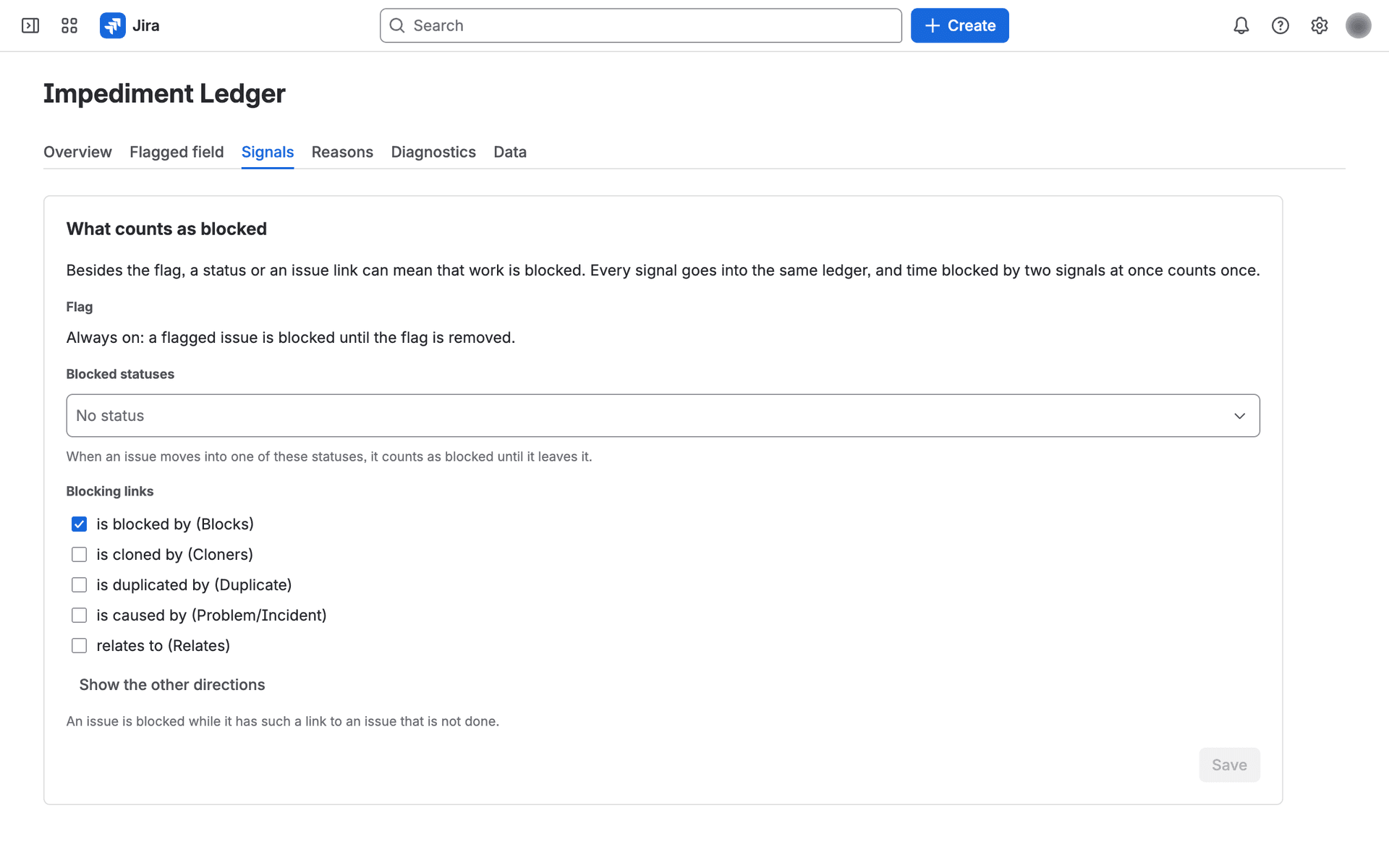
- Signals: on the Signals tab choose the statuses (up to 20) and link directions (up to 5) that also mean blocked. When you turn on tracking in the site's first project, the app saves the suggestions: statuses whose name clearly means blocked (for example "Blocked", "On Hold", "Waiting") and Blocks' "is blocked by". Other suggested statuses stay a preselection only. If other projects are tracked already, nothing is saved on its own. The tab says so until you check them and save. If there is nothing to suggest, only the flag counts until you save. Saving checks every tracked project again back to the start of its tracking. A project can use the site's choice or its own (Project settings → Impediment Ledger → Signals).
The daily check looks only at issues that are blocked now or open in the ledger. If a short blocker started and ended between two daily checks and Jira's events for it were all lost, it is not recorded; rechecking the issue on the Diagnostics tab reads its whole history and adds it.
A Jira admin can let project admins manage a project's settings.